How to Enable Data Roaming for Your eSIM
The Most Common Reason Travel eSIMs Don't Work
If you've installed your eSIM but can't get online at your destination, there's a very good chance the fix is simple: you need to turn on data roaming for your eSIM line.
This is the single most common issue our support team sees. And the good news is it takes about 10 seconds to fix.
Why Travel eSIMs Need Data Roaming
This part confuses a lot of people, so let's clear it up.
When you buy an Only eSIM plan for, say, Japan, the eSIM connects to a local Japanese carrier's network. But because the eSIM profile itself is registered with a carrier in another country, your phone sees this as a "roaming" connection.
Data roaming is simply the permission your phone needs to connect to networks outside the eSIM's home carrier. Without it, your phone blocks the connection entirely.
The important thing to understand: this has nothing to do with roaming charges. You already paid for your data plan upfront. Enabling data roaming just lets your phone use it.
How to Enable Data Roaming on iPhone
- Open Settings
- Tap Cellular (or Mobile Data in some regions)
- You'll see a list of your SIM lines — tap the one labeled with your eSIM plan name
- Find Data Roaming and toggle it ON
That's it. You should see a data connection appear in your status bar within a few seconds. If you just arrived at your destination, it may take up to a minute for your phone to find and connect to a local network.
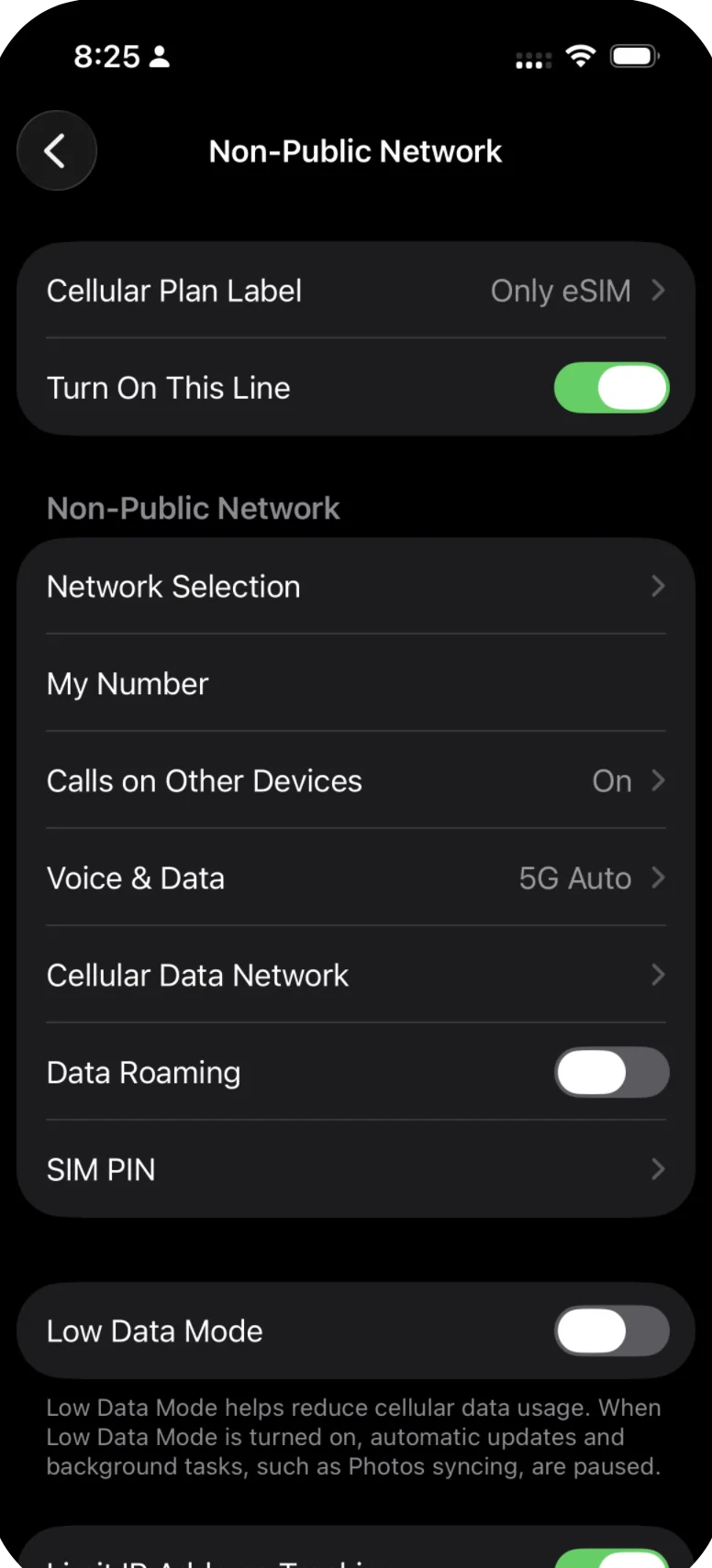
Navigate to your eSIM plan details. Data Roaming is OFF by default.
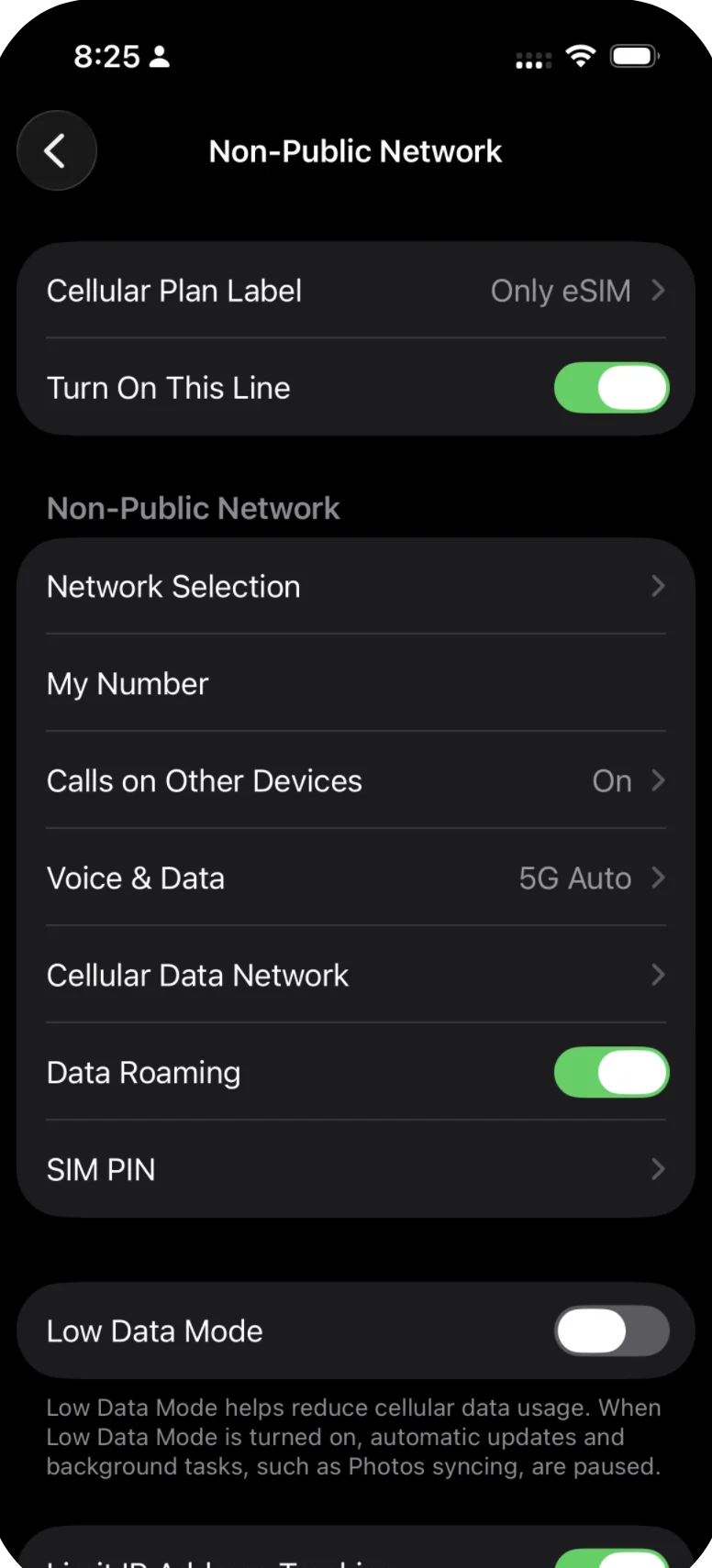
Toggle Data Roaming ON. The switch should turn green.
How to Enable Data Roaming on Google Pixel and Stock Android
- Open Settings
- Tap Network & Internet
- Tap SIMs
- Select your eSIM from the list
- Find Roaming and toggle it ON
If you don't see a "Roaming" toggle, look for Allow roaming or Data roaming — the exact label varies slightly between Android versions.
How to Enable Data Roaming on Samsung Galaxy
- Open Settings
- Tap Connections
- Tap Mobile networks
- Make sure your eSIM is the selected line at the top
- Toggle Data Roaming to ON
Samsung may show a warning popup about potential charges. You can safely confirm — this only applies to your eSIM line, and your Only eSIM plan already includes the data you purchased.
What About Your Home SIM?
Here's the key detail: data roaming is configured separately for each SIM line on your phone.
- eSIM line: Data roaming should be ON
- Physical/home SIM: Data roaming should be OFF
Enabling data roaming on your eSIM does not enable it on your physical SIM. They are independent. As long as data roaming is off on your home SIM, your home carrier won't charge you roaming fees.
For a complete walkthrough on protecting yourself from unexpected charges, see our guide on how to avoid roaming charges on your primary SIM.
Quick Checklist After Enabling Data Roaming
After you toggle data roaming on, verify these things are also in place:
- Your eSIM is set as the default data line. If your phone is still routing data through your physical SIM, you won't get the benefit of your eSIM plan. How to set your default data line.
- Your eSIM plan is active. Some plans have instant activation (validity starts at installation), while others activate upon arrival (validity starts when you connect to a network at your destination). Check your plan details for specifics.
- You're in your plan's coverage area. Your eSIM plan only works in the countries or regions listed in your order confirmation.
Still No Connection?
If data roaming is on and you're still not getting a connection:
- Restart your phone — this forces it to re-scan for available networks
- Wait 1-2 minutes — network registration can take a moment, especially right after landing
- Check your default data line — make sure your eSIM (not your physical SIM) is selected for mobile data
- Try airplane mode — toggle airplane mode on, wait 10 seconds, then toggle it off
If none of that works, contact Only eSIM support with your order number and we'll help you get connected.
Related Articles
How to Set Your eSIM as the Default Data Line
Learn how to set your travel eSIM as the default data line on iPhone, Samsung, and Android so your phone uses the eSIM for internet instead of your physical SIM.
How to Configure APN Settings (iPhone & Android)
Learn how to configure APN (Access Point Name) settings for your travel eSIM on iPhone and Android. Step-by-step guide for when your eSIM data isn't connecting.
How to Switch Between eSIM and Physical SIM
Learn how to switch your phone's data connection between your travel eSIM and physical SIM on iPhone, Samsung, and Android. No need to remove either SIM.
Was this article helpful?