How to Set Your eSIM as the Default Data Line
Why Your Default Data Line Matters
When your phone has two SIM lines — a physical SIM and an eSIM — it needs to know which one to use for mobile data. This setting is called the default data line (or preferred SIM for data).
If your phone is set to use your physical SIM for data, your travel eSIM just sits there doing nothing. Worse, if you're abroad, your home carrier handles the data connection and you end up with roaming charges.
Setting your eSIM as the default data line tells your phone: "Use this line for all internet and data traffic." Your physical SIM stays active for calls and texts.
How to Set the Default Data Line on iPhone
- Open Settings
- Tap Cellular (or Mobile Data)
- Tap Cellular Data (this is the setting that controls which line handles internet traffic)
- Select your eSIM plan from the list
- Go back one screen
Now do one more thing — this part is important:
- While still in Cellular settings, find Allow Cellular Data Switching
- Toggle it OFF
Why turn this off? When "Allow Cellular Data Switching" is on, your iPhone may automatically switch to your physical SIM for data if the eSIM signal is momentarily weak. That silent fallback can trigger roaming charges from your home carrier without any warning.
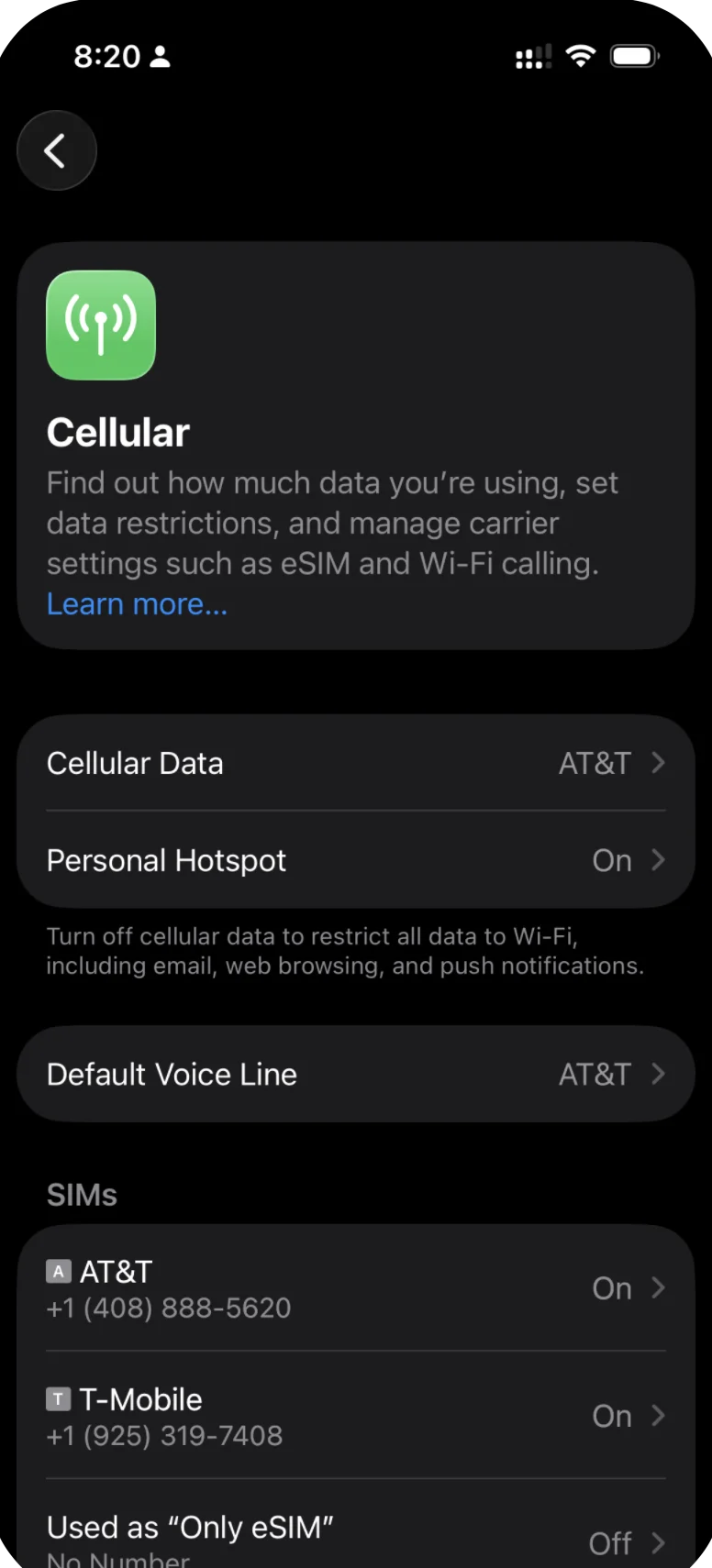
In Cellular settings, tap "Cellular Data" to choose which line handles data.
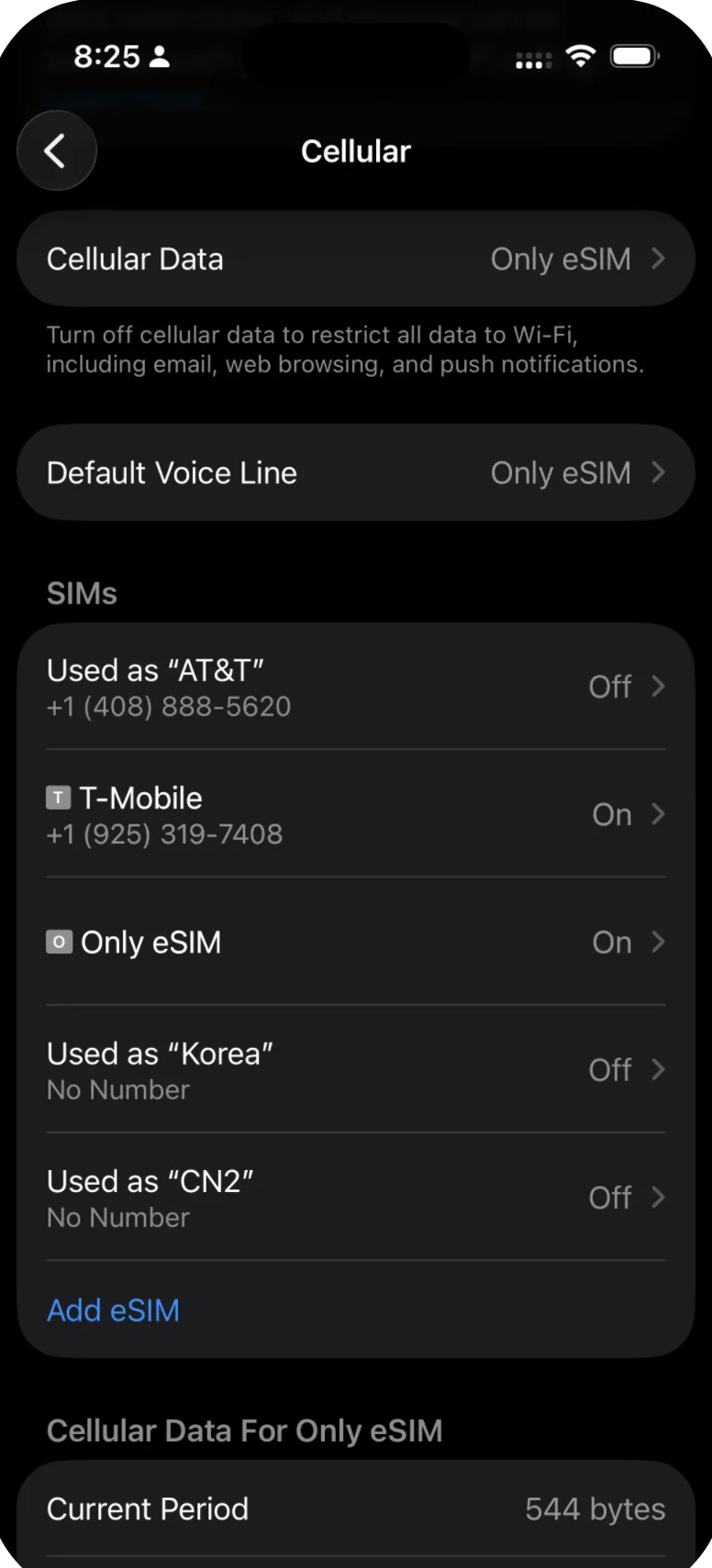
Select your eSIM as the Cellular Data line. It should show "Only eSIM" next to Cellular Data.
For your voice line: Go to Settings > Cellular > Default Voice Line and keep this set to your physical SIM. This way you can still make and receive calls on your regular number.
How to Set the Default Data Line on Google Pixel and Stock Android
- Open Settings
- Tap Network & Internet
- Tap SIMs
- Tap your eSIM line
- Tap Use for mobile data or set it as the preferred SIM for data
On some Android versions, you may see a prompt asking "Switch data to this SIM?" — confirm it.
Keep your physical SIM as the default for calls and texts. Under the same SIMs menu, you can set preferences for voice calls and SMS separately from mobile data.
How to Set the Default Data Line on Samsung Galaxy
- Open Settings
- Tap Connections
- Tap SIM manager
- Under Mobile data, tap to select your eSIM
- Confirm when prompted
Samsung makes this straightforward — the SIM manager screen clearly shows which SIM is handling data, calls, and texts. Set mobile data to your eSIM and leave calls and texts on your physical SIM.
The Ideal Dual-SIM Setup for Travel
Here's the configuration that works best for most travelers:
| Function | Which SIM to use |
|---|---|
| Mobile data / internet | eSIM (your Only eSIM travel plan) |
| Phone calls | Physical SIM (your home number) |
| SMS / text messages | Physical SIM (your home number) |
This setup lets you browse the internet, use maps, and message on WhatsApp using your eSIM data, while still being reachable on your regular phone number for calls and texts.
How to Verify It's Working
After changing the default data line:
- Turn off Wi-Fi so your phone is forced to use mobile data
- Open a browser and load any website
- Check your status bar — you should see a data indicator (4G, 5G, or LTE) next to your eSIM's carrier name
If the page loads, you're all set. Your eSIM is handling data traffic.
If it doesn't load, make sure data roaming is enabled on your eSIM line and that your plan is active.
When You're Done Traveling
When you return home, switch the default data line back to your physical SIM:
- iPhone: Settings > Cellular > Cellular Data > select your physical SIM
- Android: Settings > Network & Internet > SIMs > set physical SIM for mobile data
- Samsung: Settings > Connections > SIM manager > Mobile data > select physical SIM
You don't need to delete your eSIM profile. Keep it installed — if you travel to the same destination again, you may be able to top up or reuse it. See our guide on switching between eSIM and physical SIM for more details.
Related Articles
How to Switch Between eSIM and Physical SIM
Learn how to switch your phone's data connection between your travel eSIM and physical SIM on iPhone, Samsung, and Android. No need to remove either SIM.
How to Enable Data Roaming for Your eSIM
Data roaming must be enabled for your travel eSIM to work abroad. Learn how to turn on data roaming for your eSIM on iPhone, Samsung, and Android devices.
How to Configure APN Settings (iPhone & Android)
Learn how to configure APN (Access Point Name) settings for your travel eSIM on iPhone and Android. Step-by-step guide for when your eSIM data isn't connecting.
Was this article helpful?